Wednesday, December 28, 2011

Graph APIs for Android Platform: Part 1


For your help I have created few Graph APIs for android platform. Today I am sharing the Bar Graph APIs. This java class is a view which you can add to your Activity. The Bar graph this API create are of three type as shown in the figures(Norma, Stacked, Grouped). The details are given Below
Class BarGraphView
Super Class View
Constructors public BarGraphView(Context context)
public BarGraphView(Context context, int[] _data, int _graphWidth, int _graphHeight, int _graphOriginX, int _graphOriginY, String _yAxisLabel, String _barLabels[])
public BarGraphView(Context context, int[] _data, int _graphWidth, int _graphHeight, int _graphOriginX, int _graphOriginY, String _yAxisLabel, String _barLabels[], int _style, int _grouping)


package com.nhpc.nhpc;

import android.content.Context;
import android.graphics.Canvas;
import android.graphics.Color;
import android.graphics.Paint;
import android.graphics.Rect;
import android.graphics.Paint.Align;
import android.view.View;

class BarGraphView extends View {
    private int data[]={15,65,29,68,12,25};
    private int color[]={ 0xff3298CE, 0xffCB3398, 0xffFE9900, 0xff3266C8, 0xffCBCC65, 0xff029834, 0xffFFCC00, 0xffD70000, 0xff00CF60 };
    private int graphWidth=200; // Default Width of graph
    private int graphHeight=200; // Default graph height
    private int graphOriginX=60; // Default Origin coordinates X and Y
    private int graphOriginY=50;
    private String yAxisLabel = "Y Axis Label"; // Default label of Y axis
    private String barLabels[]= {"Bar1", "Bar2", "Bar3", "Bar4", "Bar5", "Bar6", "Bar7", "Bar8", "Bar9", "Bar10", "Bar11", "Bar12"};
    private int style = 0;
    private int grouping = 2;

        public BarGraphView(Context context) {
            super(context);
        }

        public BarGraphView(Context context, int[] _data, int _graphWidth, int _graphHeight, int _graphOriginX, int _graphOriginY, String _yAxisLabel, String _barLabels[]) {
            super(context);
            data = _data;
            graphWidth = _graphWidth;
            graphHeight = _graphHeight;
            graphOriginX = _graphOriginX;
            graphOriginY = _graphOriginY;
            yAxisLabel = _yAxisLabel;
        }
     
        public BarGraphView(Context context, int[] _data, int _graphWidth, int _graphHeight, int _graphOriginX, int _graphOriginY, String _yAxisLabel, String _barLabels[], int _style, int _grouping) {
            super(context);
            data = _data;
            graphWidth = _graphWidth;
            graphHeight = _graphHeight;
            graphOriginX = _graphOriginX;
            graphOriginY = _graphOriginY;
            yAxisLabel = _yAxisLabel;
            style = _style;
            grouping = _grouping;
        }
     
        @Override
        public void onDraw(Canvas canvas) {
        Paint paint = new Paint();
       
        if(graphHeight<200)
        paint.setTextSize(10);
        else
        paint.setTextSize(20);
        //int _width = getWidth()-(getWidth()-(graphOriginX+graphWidth)); // set the right hand extent of graph
        int _width = (graphOriginX+graphWidth); // set the right hand extent of graph
        if(getWidth() - _width <10)
        _width = getWidth()-20;
        int _height = (int)(getHeight()-graphOriginY-graphHeight);// set the top extent of graph
        if(_height<20)
        _height=20;
        int originX = graphOriginX; // set the left hand extent
        int originY = getHeight()-graphOriginY; // set the bottom extent
       
        paint.setColor(Color.WHITE);
        float padding;
        if(style == 0 || style == 11)
        padding = (float) (((float)(_width-originX)/(float)data.length)*0.20);
        else
        padding = (float) (((float)(_width-originX)/(float)((float)(data.length)/(float)grouping))*0.20);
       
        //Drawing Y Axis
        Rect yAxis = new Rect(originX,(int)(_height),originX+2,originY);
        canvas.drawRect(yAxis, paint);
       
        //Draw grid parallel to X-Axis
        int maxVal = ((int)(getMaximum(data)/10)+1)*10;
        paint.setColor(Color.WHITE);
       
        float ratio = (float) ((float)(originY-_height)/(float)maxVal); // i value is equal to this much height
        float scale = (float)maxVal*ratio/10;
       
        for(int i=1;i<=10;i++){
        paint.setColor(Color.LTGRAY);
        if(maxVal<10)
        canvas.drawText((maxVal*i/10)+"", originX-15, originY-(scale*i)+5, paint);
        else if(maxVal<100)
        canvas.drawText((maxVal*i/10)+"", originX-25, originY-(scale*i)+5, paint);
        else
        canvas.drawText((maxVal*i/10)+"", originX-35, originY-(scale*i)+5, paint);
        Rect grid = new Rect(originX,(int)(originY-1-(scale*i)),_width,(int)(originY-(scale*i)));
        if(i<10)
            canvas.drawRect(grid, paint);
        }


        paint.setTextAlign(Align.CENTER);
        int tempX = originX + (int)padding;
        int heightBar;
        int j=0;
        //Draw Bars
        if(style == 0)
        {
        for(int i=0;i<data.length;i++)
        {
        if(padding*4 <10)
        paint.setTextSize(8);
        else
        paint.setTextSize(15);
        paint.setColor(color[i%color.length]);
        heightBar=(int) (((originY-(_height))-(data[i]*ratio))+(_height));
        canvas.drawText(data[i]+"", tempX+padding*2, heightBar-5, paint);
        canvas.drawText(barLabels[i], tempX+padding*2, originY+20, paint);
        Rect bar = new Rect( tempX ,heightBar,(int)(tempX+padding*4),originY);
            canvas.drawRect(bar, paint);
            tempX = (int)(tempX+padding*5);
        }
        }
        else if(style == 11){
        for(int i=0;i<data.length;i++)
        {
        if(i>0)
            if(i%grouping == 0)
            tempX = (int)(tempX+padding*(grouping+4));
            else
            tempX = (int)(tempX+padding*4);
        paint.setColor(color[(i%grouping)%color.length]);
        heightBar=(int) (((originY-(_height))-(data[i]*ratio))+(_height));
        canvas.drawText(data[i]+"", tempX+padding*2, heightBar-5, paint);
        Rect bar = new Rect( tempX ,heightBar,(int)(tempX+padding*4),originY);
            canvas.drawRect(bar, paint);
            paint.setColor(Color.WHITE);
        if(i%grouping == 0)
        canvas.drawText(barLabels[j++], (float) (tempX+2.5*grouping*padding), originY+20, paint);
        }
        }
        else
        {
        int temp=0;
        for(int i=0;i<data.length;i++)
        {
            if(i>0 && i%grouping == 0)
            {
            tempX = (int)(tempX + padding*5);
            temp = 0;
            }
        paint.setColor(color[(i%grouping)%color.length]);
        if(i%grouping == 0)
        heightBar=(int) ((originY)-(data[i]*ratio));
        else
        heightBar=(int) ((temp)-(data[i]*ratio));
       
        Rect bar = new Rect( tempX ,heightBar,(int)(tempX+padding*4),(temp==0)?originY:temp);
        temp=heightBar;
        canvas.drawRect(bar, paint);
        paint.setColor(Color.BLACK);
        canvas.drawText(data[i]+"", tempX+padding*2, heightBar+20, paint);
        paint.setColor(Color.WHITE);
        if(i%grouping == 0)
        canvas.drawText(barLabels[j++], (float) (tempX+2*padding), originY+20, paint);
        }
        }
        //Drawing X Axis
        paint.setColor(Color.WHITE);
        Rect xAxis = new Rect(originX,originY-2,_width,originY);
        canvas.drawRect(xAxis, paint);
       
        //Drawing Y-axis label
        Rect rect = new Rect();
        paint.getTextBounds(yAxisLabel, 0, yAxisLabel.length(), rect);
        paint.setColor(Color.WHITE);
       
        paint.setStyle(Paint.Style.FILL);
        if(maxVal<10)
        {
        canvas.rotate(-90, graphOriginX-25, getHeight()-graphOriginY-graphHeight/2); // rotating the text
        canvas.drawText(yAxisLabel, graphOriginX-20, getHeight()-graphOriginY-graphHeight/2, paint);
        }
    else if(maxVal<100)
    {
    canvas.rotate(-90, graphOriginX-35, getHeight()-graphOriginY-graphHeight/2); // rotating the text
    canvas.drawText(yAxisLabel, graphOriginX-30, getHeight()-graphOriginY-graphHeight/2, paint);
    }
    else
    {
    canvas.rotate(-90, graphOriginX-45, getHeight()-graphOriginY-graphHeight/2); // rotating the text
    canvas.drawText(yAxisLabel, graphOriginX-40, getHeight()-graphOriginY-graphHeight/2, paint);
    }
        }
     
        public int getMaximum(int arr[])
        {
        int max = 0;
        if(style == 0 || style == 11)
        {
        max = arr[0];
        for(int i=1;i<arr.length;i++)
        {
        if(max<arr[i])
        max = arr[i];
        }
        }
        else
        {
        for(int i=0;i<grouping;i++)
        max+=arr[i];
        int temp=0;
        for(int i=grouping;i<arr.length;i++)
        {
        temp=temp+arr[i];
        if((i+1)%grouping ==0)
        {
        if(max<temp)
        {
        max=temp;
        }
        temp=0;
        }
       
        }
        }
       
        return max;
        }
    }


4
Feb

Creating Bar Charts with JFreeChart


Create a new Plugin project "de.vogella.rcp.jfreechart.barchart" using "RCP application with a view" as a template. Add "de.vogella.rcp.jfreechart.libs" as a dependency to project "de.vogella.jfreechart.barchart" and change the coding of the view to the following:

   
package de.vogella.rcp.jfreechart.barchart;

import java.awt.Color;

import org.eclipse.swt.SWT;
import org.eclipse.swt.widgets.Composite;
import org.eclipse.ui.part.ViewPart;
import org.jfree.chart.ChartFactory;
import org.jfree.chart.JFreeChart;
import org.jfree.chart.plot.CategoryPlot;
import org.jfree.chart.plot.PlotOrientation;
import org.jfree.data.category.CategoryDataset;
import org.jfree.data.category.DefaultCategoryDataset;
import org.jfree.experimental.chart.swt.ChartComposite;

public class View extends ViewPart {

 private CategoryDataset createDataset() {
  DefaultCategoryDataset dataset = new DefaultCategoryDataset();

  // row keys...
  String series1 = "First";
  String series2 = "Second";

  // column keys...
  String category1 = "Label 1";
  String category2 = "Label 2";
  String category3 = "Label  3";

  dataset.addValue(1.0, series1, category1);
  dataset.addValue(4.0, series1, category2);
  dataset.addValue(3.0, series1, category3);

  dataset.addValue(5.0, series2, category1);
  dataset.addValue(7.0, series2, category2);
  dataset.addValue(6.0, series2, category3);

  return dataset;
 }

 /**
  * Creates a chart.
  *
  * @param dataset
  *            dataset.
  *
  * @return A chart.
  */
 private JFreeChart createChart(CategoryDataset dataset) {

  JFreeChart chart = ChartFactory.createBarChart("Bar Chart", // chart
    // title
    "Labels", // domain axis label
    "Values", // range axis label
    dataset, // data
    PlotOrientation.VERTICAL, // orientation
    true, // include legend
    true, // tooltips?
    false // URLs?
    );

  CategoryPlot plot = (CategoryPlot) chart.getPlot();
  plot.setBackgroundPaint(Color.lightGray);
  plot.setDomainGridlinePaint(Color.white);
  plot.setDomainGridlinesVisible(true);
  plot.setRangeGridlinePaint(Color.white);
  return chart;

 }

 public void createPartControl(Composite parent) {
  JFreeChart chart = createChart(createDataset());
  final ChartComposite frame = new ChartComposite(parent, SWT.NONE,
    chart, true);
 }

 public void setFocus() {
 }
}
  
  
Run it and see that it is working.

Tuesday, December 27, 2011

Android Google MapView Tutorial Part-II


STEP 1) GET THE DEVELOPMENT ENVIRONMENT SET UP
Easy way to get started is to get the Eclipse Java EE IDE for Web Developers, install the Android SDK, get the latest versions of all the frameworks, the Google Maps Add-On, etc and then start learning.
Here’s where you can do that in Eclipse after installing the SDK:
“Window>Android SDK and AVD Manager” on the Menu.
Then you can install the available stuff that you need.
Android SDK & AVD Manager
STEP 2) GET THE GOOGLE MAPS API KEY
To allow you to show maps on your application, Google Maps API needs to identify you and your application (even if you are simply developing). For this you need the API Key for the Android platform.
You can get this by creating an md5 checksum of the debug certificate for you map application (in this case the tutorial).
Find your debug.keystore at
* Windows Vista: C:\Users\<user>\.android\debug.keystore
* Windows XP: C:\Documents and Settings\<user>\.android\debug.keystore
Then use the Keytool (found at C:\Program Files\Java\jdk1.6.0_20\bin) and get the md5 checksum by executing this:
keytool -list -alias androiddebugkey -keystore “C:\Documents and Settings\<user>\.android\debug.keystore” -storepass android -keypass android
Don’t forget the quotes around the path when in Windows!
That should get you the md5 checksum that you can plug into this site and get your Google Maps API Key for Android!
STEP 3) CODE IN!
Start a new “Android Project”
New Android Project
New Android Project
Make sure you select the relevant version of Google APIs (in case there’s a newer version by the time you are working on this).
Add a new class called “HelloItemizedOverlay”. You can do that by going to HelloGoogleeMaps2>src>com.example.HelloGoogleMaps2, doing a right click and choosing New>Class.
Adding the HelloItemizedOverlay Class
Follow the above image to choose your options. Then click Finish.
Your project’s Package Explorer should look something like this on Eclipse (my project was called HelloGoogleMaps, yours should be called HelloGoogleMaps2):
Eclipse Package Explorer
Then put these contents into the appropriate files:
strings.xml
<?xml version="1.0" encoding="utf-8"?>
<resources>
 <string name="hello">Hello World, HelloGoogleMaps!</string>
 <string name="app_name">Hello,GoogleMaps</string>
 <string name="mapskey">YOUR API KEY</string>
</resources>
main.xml
<?xml version="1.0" encoding="utf-8"?>
<com.google.android.maps.MapView
 xmlns:android="http://schemas.android.com/apk/res/android"
 android:id="@+id/mapview"
 android:layout_width="fill_parent"
 android:layout_height="fill_parent"
 android:clickable="true"
 android:apiKey="YOUR API KEY"
/>
AndroidManifest.xml
<?xml version="1.0" encoding="utf-8"?>
<manifest xmlns:android="http://schemas.android.com/apk/res/android"
 package="com.example.HelloGoogleMaps2"
 android:versionCode="1"
 android:versionName="1.0">
 <application android:icon="@drawable/icon" android:label="@string/app_name">
 <activity android:name=".HelloGoogleMaps2" android:label="@string/app_name" android:theme="@android:style/Theme.NoTitleBar">
 <intent-filter>
 <action android:name="android.intent.action.MAIN" />
 <category android:name="android.intent.category.LAUNCHER" />
 </intent-filter>
 </activity>
 <uses-library android:name="com.google.android.maps" />
 </application>
 <uses-permission android:name="android.permission.INTERNET" />
</manifest>
HelloGoogleMaps2.java
package com.example.HelloGoogleMaps2;
import java.util.List;
import android.graphics.drawable.Drawable;
import android.os.Bundle;
import com.google.android.maps.GeoPoint;
import com.google.android.maps.MapActivity;
import com.google.android.maps.MapView;
import com.google.android.maps.Overlay;
import com.google.android.maps.OverlayItem;

public class HelloGoogleMaps extends MapActivity
{
 @Override
 public void onCreate(Bundle savedInstanceState)
 {
 super.onCreate(savedInstanceState);
 setContentView(R.layout.main);

 MapView mapView = (MapView) findViewById(R.id.mapview);
 mapView.setBuiltInZoomControls(true);

 List<Overlay> mapOverlays = mapView.getOverlays();
 Drawable drawable = this.getResources().getDrawable(R.drawable.icon);
 HelloItemizedOverlay itemizedoverlay = new HelloItemizedOverlay(drawable,this);
 GeoPoint point = new GeoPoint(30443769,-91158458);
 OverlayItem overlayitem = new OverlayItem(point, "Laissez les bon temps rouler!", "I'm in Louisiana!");

 GeoPoint point2 = new GeoPoint(17385812,78480667);
 OverlayItem overlayitem2 = new OverlayItem(point2, "Namashkaar!", "I'm in Hyderabad, India!");

 itemizedoverlay.addOverlay(overlayitem);
 itemizedoverlay.addOverlay(overlayitem2);

 mapOverlays.add(itemizedoverlay);
 }
 @Override
 protected boolean isRouteDisplayed()
 {
 return false;
 }
}
HelloItemizedOverlay.java
package com.example.HelloGoogleMaps2;
import java.util.ArrayList;
import android.app.AlertDialog;
import android.content.Context;
import android.graphics.drawable.Drawable;
import com.google.android.maps.ItemizedOverlay;
import com.google.android.maps.OverlayItem;

public class HelloItemizedOverlay extends ItemizedOverlay<OverlayItem>
{
 private ArrayList<OverlayItem> mOverlays = new ArrayList<OverlayItem>();
 private Context mContext;

 public HelloItemizedOverlay(Drawable defaultMarker, Context context)
 {
 super(boundCenterBottom(defaultMarker));
 mContext = context;
 }

 public void addOverlay(OverlayItem overlay)
 {
 mOverlays.add(overlay);
 populate();
 }
 @Override
 protected OverlayItem createItem(int i)
 {
 return mOverlays.get(i);
 }
 @Override
 public int size()
 {
 return mOverlays.size();
 }
 @Override
 protected boolean onTap(int index)
 {
 OverlayItem item = mOverlays.get(index);
 AlertDialog.Builder dialog = new AlertDialog.Builder(mContext);
 dialog.setTitle(item.getTitle());
 dialog.setMessage(item.getSnippet());
 dialog.show();
 return true;
 }
}
STEP 4) RUN!!!
If you do not already have the AVD (Android Virtual Device) for the Google Maps Application, create it by going to “Window>Android SDK and AVD Manager” and selecting Virtual Devices on the left hand side.
Create Google Maps AVD
Now that all the code is in place, you can run the application:
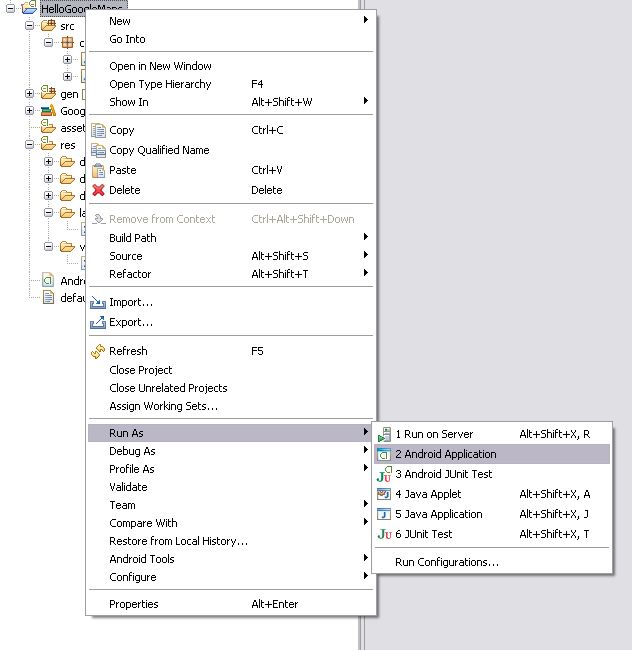
Right click on the project and choose Run As Android Application
Run Application
Run Application
This is what you should see (provided all the code was entered error free and the API Keys were entered properly):
Overview Result
Overview Result
On Zooming In and clicking on the Placemarkers, we can see the following!

MapView


This tutorial requires that you have the Google Maps external library installed in your SDK environment. By default the Android SDK includes the Google APIs add-on, which in turn includes the Maps external library. If you don't have the Google APIs SDK add-on, you can download it from this location:
The Google APIs add-on requires Android 1.5 SDK or later release. After installing the add-on in your SDK, set your project properties to use the build target called "Google APIs Add-on". See the instructions for setting a build target in Developing in Eclipse with ADT or Developing in Other IDEs, as appropriate for your environment.
You will also need to use the android tool to set up an AVD that uses the Google APIs deployment target. See Android Virtual Devices for more information. Once you have set up your environment, you will be able to build and run the project described in this tutorial
A MapView allows you to create your own map-viewing Activity. First, we'll create a simple Activity that can view and navigate a map. Then we will add some overlay items.
  1. Start a new project/Activity called HelloMapView.
  2. Because we're using the Google Maps library, which is not a part of the standard Android library, we need to declare it in the Android Manifest. Open the AndroidManifest.xml file and add the following as a child of the <application> element:
    <uses-library android:name="com.google.android.maps" />
  3. We also need access to the internet in order to retrieve the Google Maps tiles, so the application must request the INTERNET permissions. In the manifest file, add the following as a child of the <manifest> element:
    <uses-permission android:name="android.permission.INTERNET" />
  4. Now open the main layout file for your project. Define a layout with a com.google.android.maps.MapView inside a android.widget.RelativeLayout:
    <?xml version="1.0" encoding="utf-8"?>
    <RelativeLayout xmlns:android="http://schemas.android.com/apk/res/android"
        android:id="@+id/mainlayout"
        android:orientation="vertical"
        android:layout_width="fill_parent"
        android:layout_height="fill_parent" >
    
        <com.google.android.maps.MapView
            android:id="@+id/mapview"
            android:layout_width="fill_parent"
            android:layout_height="fill_parent"
            android:clickable="true"
            android:apiKey="Your Maps API Key"
        />
    </RelativeLayout>
    The clickable attribute defines whether you want to allow user-interaction with the map. In this case, we set it "true" so that the user can navigate.
    The apiKey attribute holds the Google Maps API Key that proves your application and signer certificate has been registered with the Google Maps service. Because MapView uses Google Maps data, this key is required in order to receive the map data, even while you are developing. Registration is free and it only takes a couple minutes to register your certificate and receive a Maps API Key. For instructions on getting a key, read Obtaining a Maps API Key. (For the purpose of this tutorial, you should register with the fingerprint of the SDK debug certificate.) Once you've acquired the Maps API Key, insert it for the apiKey value.
  5. Now open the HelloMapView.java file. For this Activity, we're going to extend the special sub-class of Activity called MapActivity, so change the class declaration to extend MapActivity, instead of Activity:
    public class HelloMapView extends MapActivity {
  6. The isRouteDisplayed() method is required, so add it inside the class:
    @Override
    protected boolean isRouteDisplayed() {
        return false;
    }
    You can actually run this now, but all it does is allow you to pan around the map.
  7. Now go back to the HelloMapView class. We'll now retrieve the ZoomControls object from the MapView and add it to our new layout element. First, at the top of the HelloMapView, instantiate handles for the MapView and LinearLayout, plus a ZoomControl object:
    LinearLayout linearLayout;
    MapView mapView;
  8. Then initialize each of these in onCreate(). We'll capture the LinearLayout and MapView through their layout resources. Then get the ZoomControls from the MapView::
    mapView = (MapView) findViewById(R.id.mapview);
    mapView.setBuiltInZoomControls(true);
    By using the built-in zoom control provided by MapView, we don't have to do any of the work required to actually perform the zoom operations. The controls will appear whenever the user touches the map, then disappear after a few moments of inactivity.
  9. Run it.

So, we now have full interaction controls. All well and good, but what we really want our map for is custom markers and layovers. Let's add some Overlay objects to our map. To do this, we're going to implement the ItemizedOverlay class, which can manage a whole set of Overlay items for us.
  1. Create a new Java class named HelloItemizedOverlay that implements ItemizedOverlay. When using Eclipse, right-click the package name in the Eclipse Package Explorer, and select New > Class. Fill-in the Name field as HelloItemizedOverlay. For the Superclass, enter com.google.android.maps.ItemizedOverlay. Click the checkbox for Constructors from superclass. Click Finish.
  2. First thing, we need an OverlayItem ArrayList, in which we'll put each of the OverlayItem objects we want on our map. Add this at the top of the HelloItemizedOverlay class:
    private ArrayList<OverlayItem> mOverlays = new ArrayList<OverlayItem>();
  3. All the constructor does is define the default marker to be used on each of the OverlayItems. In order for the Drawable to actually get drawn, it must have its bounds defined. And we want the center-point at the bottom of the image to be the point at which it's attached to the map coordinates. We handle all this with the boundCenterBottom() method. Wrap this around our defaultMarker, so the super constructor call looks like this:
    super(boundCenterBottom(defaultMarker));
  4. In order to add new OverlayItems to our ArrayList, we need a new public method. We'll handle this with the following method:
    public void addOverlay(OverlayItem overlay) {
        mOverlays.add(overlay);
        populate();
    }
    Each time we add a new OverlayItem, we must call populate(), which will read each of out OverlayItems and prepare them to be drawn.
  5. In order for the populate() method to read each OverlayItem, it will make a request to createItem(int). We must define this method to properly read from our ArrayList. Replace the existing contents of the createItem method with a get() call to our ArrayList:
    @Override
    protected OverlayItem createItem(int i) {
      return mOverlays.get(i);
    }
  6. We're also required to override the size() method. Replace the existing contents of the method with a size request to our ArrayList:
    return mOverlays.size();
That's it for the HelloItemizedOverlay class. We're now ready to use it.

Go back to the HelloMapView class. We'll start by creating one OverlayItem, adding to an instance of our HelloItemizedOverlay, and then adding this to the MapView.
First, we need the image that we'll use for our map overlay. Here, we'll use the Android on the right as our marker. Drag this image (or your own) to the res/drawable/ directory of your project workspace.
Now we're ready to work in the HelloMapView:
  1. First we need some more types. Add the following at the top of the HelloMapView class:
    List<Overlay> mapOverlays;
    Drawable drawable;
    HelloItemizedOverlay itemizedOverlay;
  2. Now pick up where we left off in the onCreate() method. Instantiate the new fields:
    mapOverlays = mapView.getOverlays();
    drawable = this.getResources().getDrawable(R.drawable.androidmarker);
    itemizedoverlay = new HelloItemizedOverlay(drawable);
    All overlay elements on a map are held by the MapView, so when we want to add some, we must first retrieve the List with getOverlays() methods. We instantiate the Drawable, which will be used as our map marker, by using our Context resources to get the Drawable we placed in the res/drawable/ directory (androidmarker.png). Our HelloItemizedOverlay takes the Drawable in order to set the default marker.
  3. Now let's make our first OverlayItem by creating a GeoPoint that defines our map coordinates, then pass it to a new OverlayItem:
    GeoPoint point = new GeoPoint(19240000,-99120000);
    OverlayItem overlayitem = new OverlayItem(point, "", "");
    GeoPoint coordinates are based in microdegrees (degrees * 1e6). The OverlayItem takes this GeoPoint and two strings. Here, we won't concern ourselves with the strings, which can display text when we click our marker, because we haven't yet written the click handler for the OverlayItem.
  4. All that's left is for us to add this OverlayItem to our collection in the HelloItemizedOverlay, and add this to the List of Overlay objects retrieved from the MapView:
    itemizedoverlay.addOverlay(overlayitem);
    mapOverlays.add(itemizedoverlay);
  5. Run it!
We've sent our droid to Mexico City. Hola, Mundo!
You should see the following:
Because we created our ItemizedOverlay class with an ArrayList, we can continue adding new OverlayItems. Try adding another one. Before the addOverlay() method is called, add these lines:
GeoPoint point2 = new GeoPoint(35410000, 139460000);
OverlayItem overlayitem2 = new OverlayItem(point2, "", "");

Android Beginners: NDK Setup Step by Step XP -(Cygwin)


Most Android developers start their learning from pure Java, Android SDK based apps. While everyone is aware that there is the NDK (the Native Development Kit), they don’t face the need to use it. Since NDK is distributed separately from the SDK, including documentations and samples, you are not likely to get familiar with NDK before you actually try it as a solution to one of your development challenges.
Because of that, many people think of NDK as of “black magic” of Android development. Many developers who are not familiar with NDK think it is 1) complex to understand and use, and at the same time a lot of developers will think it is a sort of a 2) silver bullet that can solve any problem that can’t be solved with SDK.
Well, both opinions are rather wrong, as I hope to show further in this post. Although it does have a maintenance cost and does add technical complexity to your project, NDK is not difficult to install or use in your project. And, while there are cases where NDK will be really helpful for your app, NDK has a rather limited API that’s mostly focused on several performance-critical areas, such as:
  • OpenGL, including support for some newer versions that the (Java) SDK supports
  • Math (some, but not all, calculation-intensive algorithms might benefit from being done on the native layer)
  • 2D graphics – pixelbuffer support (only starting with 2.2)
  • libc – it’s there for compatibility and perhaps to allow you to port existing native code
In this tutorial we will take our basic Android development environment that we created in one of the previous articles and add NDK support to it. We will also create a basic skeleton project that uses NDK that you can use as the foundation for your NDK-powered apps.

The downloads that are necessary for the initial configuration of the environment might take some time (around 30 minutes total), so be prepared.
Ready? Let’s go!

Step 1: Installing C/C++ Support on Eclipse

This is where we stand right after we’re done with the previous tutorial. In short, we have a basic Eclipse installation, plus Android SDK and ADT that brings Android support to Eclipse:

(we’re not going to use our old project, foobar, so you can just close it.)
While NDK supports both C and C++, C++ support is rather limited. For example, exceptions are not supported and there are some known bugs in static constructor/destructor invocations. Also, most of the time when you will use NDK as it was intended – for moving the most performance-critical parts of code to the native layer – you are not likely to need much OOP abstraction and other design goodies. What I’m trying to say is that NDK code is more likely to be written in C rather than C++.
Anyway, our Eclipse installation does not support either C or C++ right now. We don’t really need the full support, including building etc. But we would like to have syntax coloring and basic syntax checking. Thus we have to add some Eclipse features via the update mechanism, almost like when we added Android support.
Right now go to HelpInstall New Software menu item. Choose Galileo as the update site (“Work with”). Let the item tree load, and check Eclipse C/C++ Development Tools in the Programming Languages branch:

Then press Next. Say yes to everything, accept the licenses and let Eclipse finish the update. Once it is done, you will see the prompt to restart Eclipse:

Say Yes and wait for Eclipse to restart. You have C/C++ support in your Eclipse IDE now.

Step 2: Installing Cygwin

Android is Linux based, and thus it is no surprise that when you build native code for it, you need some Unix tools. On Windows, NDK supports Cygwin 1.7.x and above. If you don’t know what Cygwin is, it’s just a set of software that emulates Unix environment on Windows which is necessary in some cases, including ours.
In order to get Cygwin, go to cygwin.com:

There’s a small grey box on the right side of the page that says “Install or update Cygwin now!”. Click it, and Cygwin’s setup.exe will download and run:

Choose Install from Internet, then click Next, then choose the installation directory (be sure to choose a directory path that contains no spaces in it) – and by the way, the whole thing is going to require up to few gigs of space. Then, choose the local package directory – just use some temporary directory, you’re not likely to need it afterwards.
At this point Cygwin will connect to its central site and download the list of mirror sites. Choosing a mirror site that looks geographically close to you may save you some download time:

After you choose the mirror and click Next, Cygwin will download and present to you the list of available packages:

By default, only the base packages are installed. We, however, need the development packages. Rather than picking the packages we think we need, and then struggling with missing dependencies and other typical Unix nightmares, I suggest that we install the entire Devel branch. Click (once) on the word “Default” next to the root Devel node and wait few seconds while the setup hangs. When it is back, you will see that “Default” changes to “Install” for the Devel node, just like on the screenshot above.
Now click next and let Cygwin download the packages and install the environment:

This might take a while, so you can go have a coffee now. Or lunch if your internet connection is slow.
When you are back, you will hopefully see the final setup screen:

Allow it to create an icon on the desktop. Here’s what you will see on your desktop after you click Finish – an icon that launches the Cygwin console:

Click it once, let the Cygwin console start up and initialize:

To check that we have the tool that is important for Android NDK, type make -v in the console:

You should see the same response that tells us that GNU Make is present in our Unix environment that is emulated by Cygwin. Cool!
Note: From my own experience, Cygwin installation is often unstable and can be error-prone. If you have a specific issue, let’s discuss it in comments and I’ll try to help. Don’t go further if something is wrong at this step, since correctly installed Cygwin is a requirement for working with NDK on Windows.

Step 3: Installing the Android NDK

Our next step is to download Android NDK itself and place it on our filesystem. You can get NDK from the official Android site:

Download the NDK zip for Windows and extract it somewhere, but again, be sure that there are no spaces in the path. In my case, I extracted it to C:\, so the path is C:\android-ndk-r4.
Now we have the environment ready for our first NDK app!

Step 4: Making a Basic NDK App

The general idea of using NDK in apps is to put your native pieces of code into libraries that you can then consume from the Java code. Thus, you always start with a standard (Java) app and then add NDK pieces to it. Thus, let’s create a basic app in Eclipse as we did previously, using the New Android Project wizard:

There is, however, an important thing to check, and believe it or not, it is spaces in the path again. My Eclipse workspace is located in a directory that has spaces in it, so I had to uncheck the Use default location checkbox and manually choose a path that does not have spaces, as you can see in the screenshot above. In general, it’s better to keep Eclipse workspaces located in space-free paths.
Otherwise, there are no NDK-specific things you should do when creating the app. I allowed the wizard to create a dummy activity called NdkFooActivity that we will use later on.
After the app has been created by the wizard…

..Make a folder called jni in the root of the project (right-click the project node, NewFolder). Create a file called Android.mk (NewFile) within that folder with the following contents:
1
2
3
4
5
6
7
8
9
LOCAL_PATH := $(call my-dir)
 
include $(CLEAR_VARS)
 
# Here we give our module name and source file(s)
LOCAL_MODULE    := ndkfoo
LOCAL_SRC_FILES := ndkfoo.c
 
include $(BUILD_SHARED_LIBRARY)
Except the module name (ndkfoo), treat everything in that file as magic. You can go deeper into Unix Makefiles later if you want.
The Android.mk file is important for the NDK build process to recognize your NDK modules. In our case we named our module ndkfoo and told the build tool that it consists of one source file named ndkfoo.c. Let’s create it in the same jni folder:

Here’s the content for you to copy and paste:
1
2
3
4
5
6
#include <string.h>
#include <jni.h>
 
jstring Java_com_mindtherobot_samples_ndkfoo_NdkFooActivity_invokeNativeFunction(JNIEnv* env, jobject javaThis) {
  return (*env)->NewStringUTF(env, "Hello from native code!");
}
Android actually uses the standard Java way to communicate with native code called JNI (Java Native Interface). It defines conventions and mechanisms that Java code and C/C++ code use to interact. You can read more about JNI in the official Sun docs, but for now you might notice that the name of the C function is not just random – it matches the Java class name. In addition, what the function does is it uses the JNIEnv object to create a Java string from a literal, and returns the string to the caller.
You will need to learn more JNI if you’re going to use NDK a lot. By the way, it is also possible to call Java methods from native code, create custom objects and so on.
Now, in order to create a binary library from the C source that we wrote, we will use a combination of Cygwin and Android NDK tools. Launch the Cygwin console and use the cd command to go directly to the folder where your project is. Notice that Windows drives are mapped under /cygdrive within the emulated Unix environment you work with in the Console console. In my case, the command line is: cd /cygdrive/c/projects/ndkfoo
Then, issue a command that will invoke the NDK build tool. In my case, since NDK is installed in C:\ it looks like this: /cygdrive/c/android-ndk-r4/ndk-build
Here’s a screenshot for you to check:

As you can notice, a successful run of the ndk-build tool will create an .so file in a new folder called libs that will be created in your project root (if it’s not there yet). The .so file is the binary library that will be included into the application .apk package and will be available for the Java code of the app to link to. You just need to hit F5 in Eclipse after selecting the project root to update the Eclipse project with the changes you did in the Cygwin console.
You have to repeat the ndk-build command every time you modify the C/C++ source of your NDK code. Eclipse ADT does not support NDK so you need to do it from the Cygwin console. Don’t forget to refresh Eclipse every time!
Anyway, the NDK part is actually finished. What we need to do now is to change the Java code of the NdkFooActivity class to use the NDK code:
01
02
03
04
05
06
07
08
09
10
11
12
13
14
15
16
17
18
19
20
21
22
23
24
25
26
27
package com.mindtherobot.samples.ndkfoo;
 
import android.app.Activity;
import android.app.AlertDialog;
import android.os.Bundle;
 
public class NdkFooActivity extends Activity {
 
  // load the library - name matches jni/Android.mk
  static {
    System.loadLibrary("ndkfoo");
  }
 
  // declare the native code function - must match ndkfoo.c
  private native String invokeNativeFunction();
 
  @Override
    public void onCreate(Bundle savedInstanceState) {
        super.onCreate(savedInstanceState);
        setContentView(R.layout.main);
 
        // this is where we call the native code
        String hello = invokeNativeFunction();
 
        new AlertDialog.Builder(this).setMessage(hello).show();
    }
}
As you can probably guess, this code will invoke the NDK method that will return the string, that will be displayed as an alert on the screen. Here’s the result of running the ndkfoo app on the emulator:

Congratulations! Your first NDK app is running fine.

Step 5: Be Wise and Careful

As it was mentioned above, and as you probably understand better now, NDK is not a monster and is quite easy to use in your app. However, every time you want to use NDK, please think twice and perform investigation to see how much you could actually gain from using it. Mixing C/C++ with Java is generally a bad idea from the code quality point of view, and Dalvik VM is getting faster and faster so you can avoid the NDK in many cases.
Also, be sure to read the NDK docs and learn JNI thoroughly to make sure you use NDK correctly and safely.
Otherwise, happy NDK’ing. :)

Compiling VLC from Source for APK

Requirements:

  • Android SDK
  • Android NDK
  • Eclipse
  • GitHub
  • SDK Platform Android 2.2, API 8, revision 2 (run /usr/local/android-sdk/tools/android -> Available Packages)

If you don't have the Android SDK, NDK, and Eclipse installed, you can use my GitHub Auto-Installer for Ubuntu and Linux Mint 11.

VLC Git Repository + Changelog

Installation Instructions

From terminal type the following and assuming we're starting from the user directory ($ denotes a new line):

$ git clone git://git.videolan.org/vlc/vlc-android.git
$ sudo apt-get install wget subversion libtool dh-autoreconf
$ export ANDROID_NDK=/usr/local/android-ndk
$ export ANDROID_SDK=/usr/local/android-sdk
$ cd vlc-android/extras/contrib/
$ ./bootstrap -t arm-eabi -d android
$ make
$ cd ~/vlc-android
$ ./bootstrap
$ mkdir builddir
$ cd builddir
$ sh ~/vlc-android/extras/package/android/configure.sh
$ [COLOR="red"]./compile[/COLOR]
$ cd ~/vlc-android/extras/package/android
$ VLC_BUILD_DIR=~/vlc-android/builddir VLC_CONTRIB=~/vlc-android/extras/contrib/build make

** Notes

If you have trouble compiling it substitute ./compile with ./compile -k
If you didn't use my installer for the SDK / NDK then make sure you export the correct directories.

VLC-debug.apk and VLC-debug-unaligned.apk will be created in the ~/vlc-android/extras/package/android/vlc-android/bin folder. Just copy VLC-debug-unaligned.apk to your phone and you've got VLC on your phone. This player works with Cyanogen mod on the Droid X and can (kinda) play .mkv videos. It's still in alpha and you should repeat this process periodically to get the latest version of the APK.


AndroidCompile

This page is an introduction to compilation of VLC for Android on Linux.

Contents

[hide]

Eclipse, SDK and NDK installation

Android SDK

  1. Create a working directory android.
  2. Go to Android SDK page and download android-sdk_r10-linux_x86.tgz.
  3. Decompress into android folder.
  4. Run tools/android.
  5. In the tool, install "SDK Platform Android 2.3, API 10", and follow the instructions.
You can have more details, if needed.


Android NDK

  1. Check that the SDK installation is correct.
  2. Go to Android NDK page.
  3. Download http://dl.google.com/android/ndk/android-ndk-r5b-linux-x86.tar.bz2.
  4. Decompress into android folder, next to your android-sdk-linux_x86 folder.


Eclipse

As used by your distribution, install eclipse with your package manager:
apt-get install eclipse (debian)
yum install eclipse (Fedora)
pacman -S eclipse (Arch)
emerge -av eclipse-sdk (Gentoo)
...
And run it, at least once, and then quit eclipse.

ADT

The ADT plugin is required to compile on Android.
  1. Go to ADT page.
  2. Start Eclipse, then select Help > Install New Software....
  3. Add the "ADT Plugin" repository with https://dl-ssl.google.com/android/eclipse/ as URL
  4. Validate and select the checkbox next to Developer Tools and click Next, Next, Finish.
  5. Restart Eclipse.
  6. Go to Menu > Window > Preferences... and then Android from the left pane.
  7. Point the SDK Location in to your downloaded SDK directory.
  8. Ok, and quit Eclipse.
See extra information here.

Environment setup

Linux and autotools

You MUST be on Linux, and a recent one.
You MUST have installed: autoconf, automake, libtool, gcc, g++, pkg-config, cmake, patch, subversion. And very up-to-date versions of those tools.
You MUST install: git.

Environment

Set $ANDROID_SDK to point to your android SDK directory
export ANDROID_SDK=/path/to/android-sdk
Set $ANDROID_NDK to point to your android NDK directory
export ANDROID_NDK=/path/to/android-ndk
Add some useful binaries in your path
export PATH=$PATH:$ANDROID_SDK/tools:$ANDROID_SDK/platform-tools
If you plan to use the emulator, you need a build without neon
export NO_NEON=1
Those exports must be set at all times, notably for the contribs and the configure.

Get VLC Source

Use the VLC git repository to get the source!
In your android folder, run:
git clone git://git.videolan.org/vlc-ports/android.git


Compile

run
sh install.sh

Package in eclipse

  1. In Eclipse, create a new Android project from existing source by giving the extra/platform/android/vlc-android path.
  2. Compile your project using Eclipse.


Run

Run it and enjoy!