STEP 1) GET THE DEVELOPMENT ENVIRONMENT SET UP
Easy way to get started is to get the Eclipse Java EE IDE for Web Developers, install the Android SDK, get the latest versions of all the frameworks, the Google Maps Add-On, etc and then start learning.
Here’s where you can do that in Eclipse after installing the SDK:
“Window>Android SDK and AVD Manager” on the Menu.
Then you can install the available stuff that you need.

Android SDK & AVD Manager
To allow you to show maps on your application, Google Maps API needs to identify you and your application (even if you are simply developing). For this you need the API Key for the Android platform.
You can get this by creating an md5 checksum of the debug certificate for you map application (in this case the tutorial).
Find your debug.keystore at
* Windows Vista: C:\Users\<user>\.android\debug.keystore
* Windows XP: C:\Documents and Settings\<user>\.android\debug.keystore
Then use the Keytool (found at C:\Program Files\Java\jdk1.6.0_20\bin) and get the md5 checksum by executing this:
keytool -list -alias androiddebugkey -keystore “C:\Documents and Settings\<user>\.android\debug.keystore” -storepass android -keypass android
Don’t forget the quotes around the path when in Windows!
That should get you the md5 checksum that you can plug into this site and get your Google Maps API Key for Android!
STEP 3) CODE IN!
Start a new “Android Project”

New Android Project
Add a new class called “HelloItemizedOverlay”. You can do that by going to HelloGoogleeMaps2>src>com.example.HelloGoogleMaps2, doing a right click and choosing New>Class.

Adding the HelloItemizedOverlay Class
Your project’s Package Explorer should look something like this on Eclipse (my project was called HelloGoogleMaps, yours should be called HelloGoogleMaps2):

Eclipse Package Explorer
strings.xml
<?xml version="1.0" encoding="utf-8"?>
<resources>
 <string name="hello">Hello World, HelloGoogleMaps!</string>
 <string name="app_name">Hello,GoogleMaps</string>
 <string name="mapskey">YOUR API KEY</string>
</resources>
<?xml version="1.0" encoding="utf-8"?>
<com.google.android.maps.MapView
 xmlns:android="http://schemas.android.com/apk/res/android"
 android:id="@+id/mapview"
 android:layout_width="fill_parent"
 android:layout_height="fill_parent"
 android:clickable="true"
 android:apiKey="YOUR API KEY"
/>
<?xml version="1.0" encoding="utf-8"?>
<manifest xmlns:android="http://schemas.android.com/apk/res/android"
 package="com.example.HelloGoogleMaps2"
 android:versionCode="1"
 android:versionName="1.0">
 <application android:icon="@drawable/icon" android:label="@string/app_name">
 <activity android:name=".HelloGoogleMaps2" android:label="@string/app_name" android:theme="@android:style/Theme.NoTitleBar">
 <intent-filter>
 <action android:name="android.intent.action.MAIN" />
 <category android:name="android.intent.category.LAUNCHER" />
 </intent-filter>
 </activity>
 <uses-library android:name="com.google.android.maps" />
 </application>
 <uses-permission android:name="android.permission.INTERNET" />
</manifest>
package com.example.HelloGoogleMaps2;
import java.util.List;
import android.graphics.drawable.Drawable;
import android.os.Bundle;
import com.google.android.maps.GeoPoint;
import com.google.android.maps.MapActivity;
import com.google.android.maps.MapView;
import com.google.android.maps.Overlay;
import com.google.android.maps.OverlayItem;

public class HelloGoogleMaps extends MapActivity
{
 @Override
 public void onCreate(Bundle savedInstanceState)
 {
 super.onCreate(savedInstanceState);
 setContentView(R.layout.main);

 MapView mapView = (MapView) findViewById(R.id.mapview);
 mapView.setBuiltInZoomControls(true);

 List<Overlay> mapOverlays = mapView.getOverlays();
 Drawable drawable = this.getResources().getDrawable(R.drawable.icon);
 HelloItemizedOverlay itemizedoverlay = new HelloItemizedOverlay(drawable,this);
 GeoPoint point = new GeoPoint(30443769,-91158458);
 OverlayItem overlayitem = new OverlayItem(point, "Laissez les bon temps rouler!", "I'm in Louisiana!");

 GeoPoint point2 = new GeoPoint(17385812,78480667);
 OverlayItem overlayitem2 = new OverlayItem(point2, "Namashkaar!", "I'm in Hyderabad, India!");

 itemizedoverlay.addOverlay(overlayitem);
 itemizedoverlay.addOverlay(overlayitem2);

 mapOverlays.add(itemizedoverlay);
 }
 @Override
 protected boolean isRouteDisplayed()
 {
 return false;
 }
}package com.example.HelloGoogleMaps2;
import java.util.ArrayList;
import android.app.AlertDialog;
import android.content.Context;
import android.graphics.drawable.Drawable;
import com.google.android.maps.ItemizedOverlay;
import com.google.android.maps.OverlayItem;
public class HelloItemizedOverlay extends ItemizedOverlay<OverlayItem>
{
private ArrayList<OverlayItem> mOverlays = new ArrayList<OverlayItem>();
private Context mContext;
public HelloItemizedOverlay(Drawable defaultMarker, Context context)
{
super(boundCenterBottom(defaultMarker));
mContext = context;
}
public void addOverlay(OverlayItem overlay)
{
mOverlays.add(overlay);
populate();
}
@Override
protected OverlayItem createItem(int i)
{
return mOverlays.get(i);
}
@Override
public int size()
{
return mOverlays.size();
}
@Override
protected boolean onTap(int index)
{
OverlayItem item = mOverlays.get(index);
AlertDialog.Builder dialog = new AlertDialog.Builder(mContext);
dialog.setTitle(item.getTitle());
dialog.setMessage(item.getSnippet());
dialog.show();
return true;
}
}If you do not already have the AVD (Android Virtual Device) for the Google Maps Application, create it by going to “Window>Android SDK and AVD Manager” and selecting Virtual Devices on the left hand side.

Create Google Maps AVD
Right click on the project and choose Run As Android Application
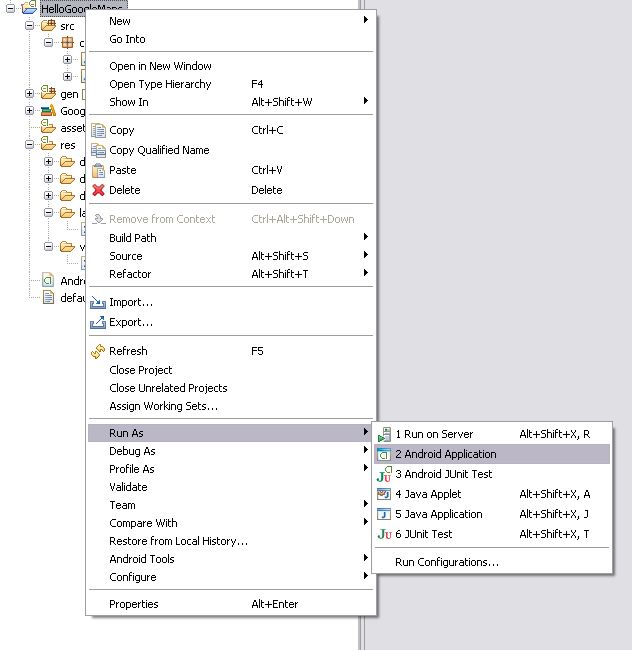
Run Application

Overview Result


No comments:
Post a Comment